ITSM4Outlook is an integration application that connects BMC Remedy ITSM to Microsoft Outlook. It is installed as an Outlook extension and adds new menus, features, options and panels. This article presents its interface and the menus available.
Global overview
ITSM menu
Once ITSM4Outlook is installed, a new tab called ITSM is available in the Outlook ribbon.
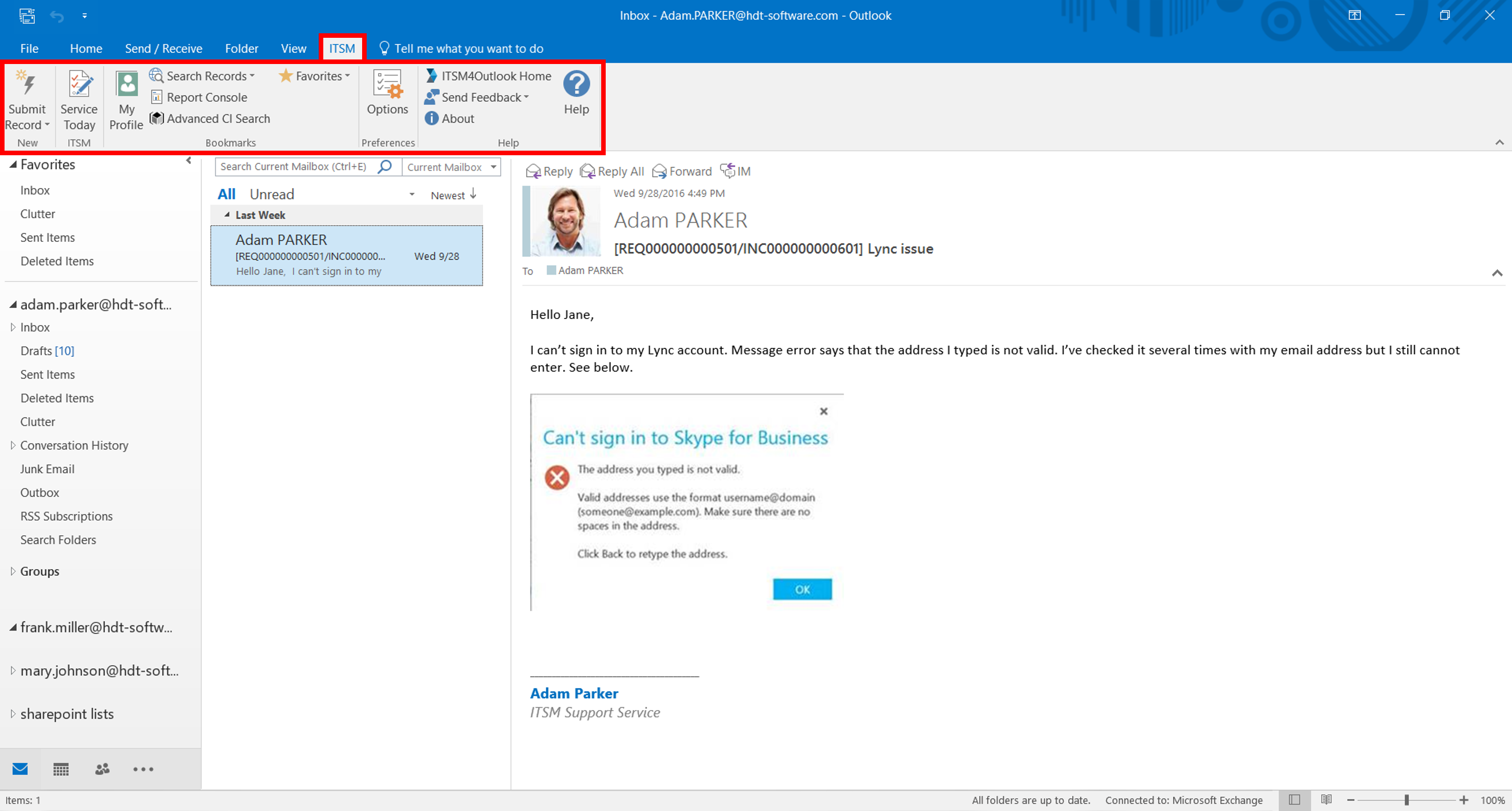
The menu gives access to the following options.

Submit Record opens a pop-up window to create and submit tickets.

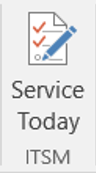
Service Today shows the ITSM Service Today panel on the right of the screen.

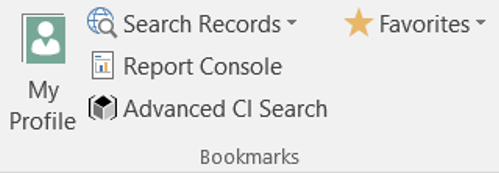
The bookmark buttons open the corresponding option in the Remedy ITSM web console.

Options opens a configuration window where you can set up and customise the add-in.

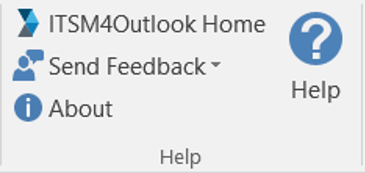
The buttons of the Help section provide more information.
ITSM Service Today
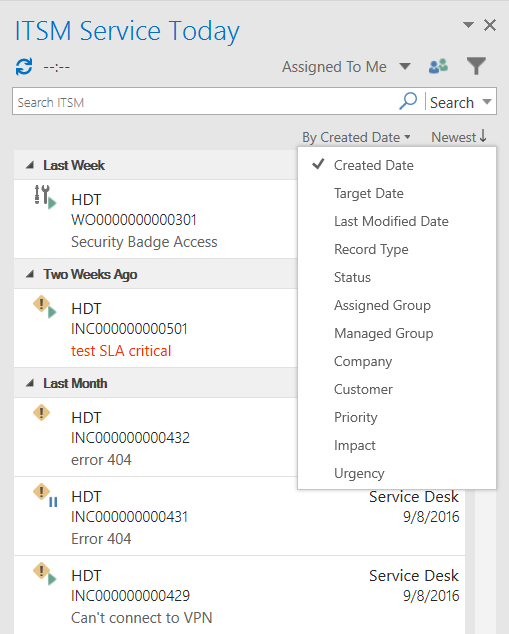
The ITSM Service Today panel displays your workload and lets you work on your tickets. It is structured in several layers:
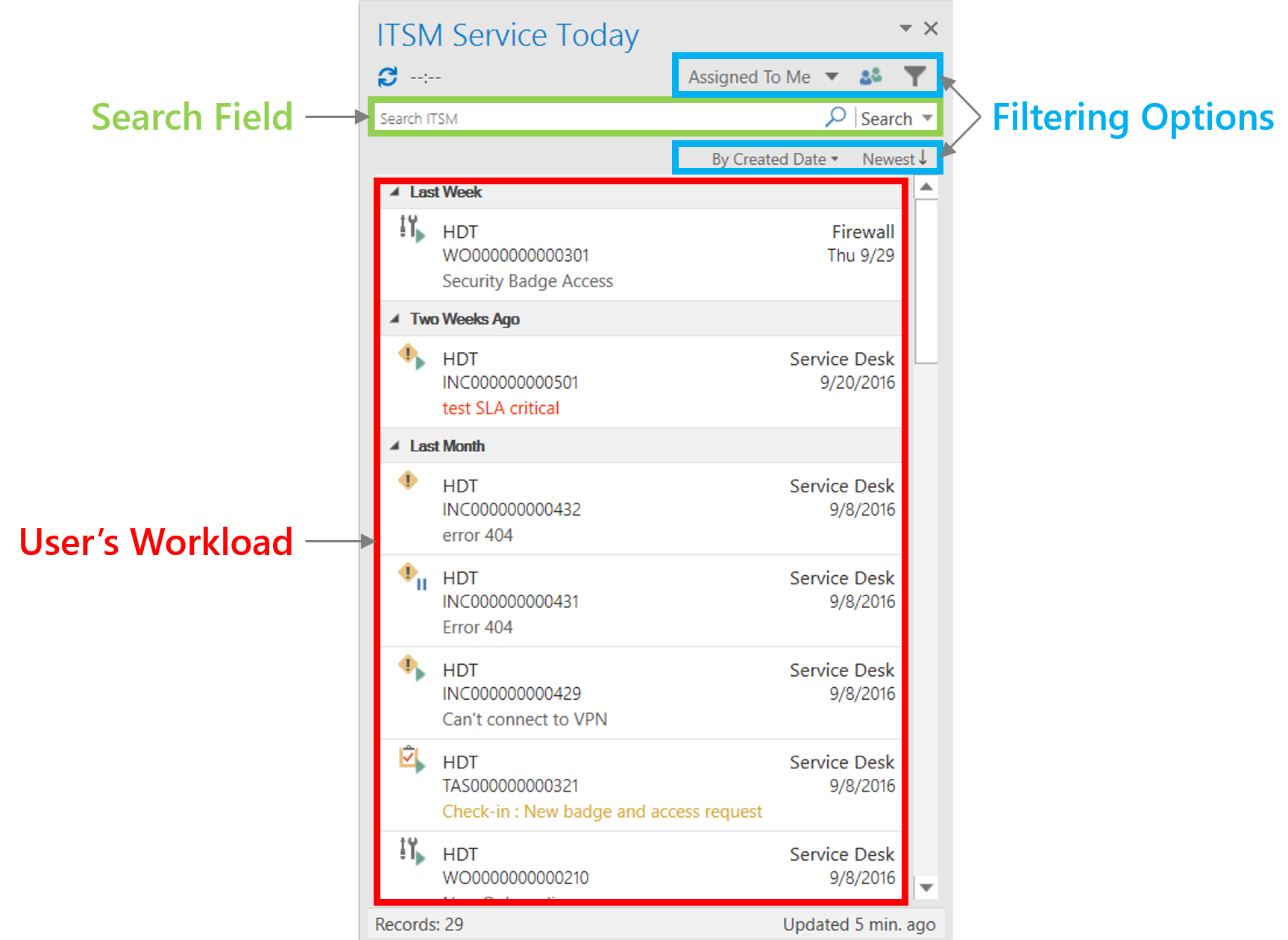
- A main window that shows your workload. Selecting a record displays the ticket information and gives access to the functions described in the ITSM record section.
- A search field to quickly find specific ITSM records. When you select it, the Outlook ribbon displays the Search ITSM menu for advanced queries.
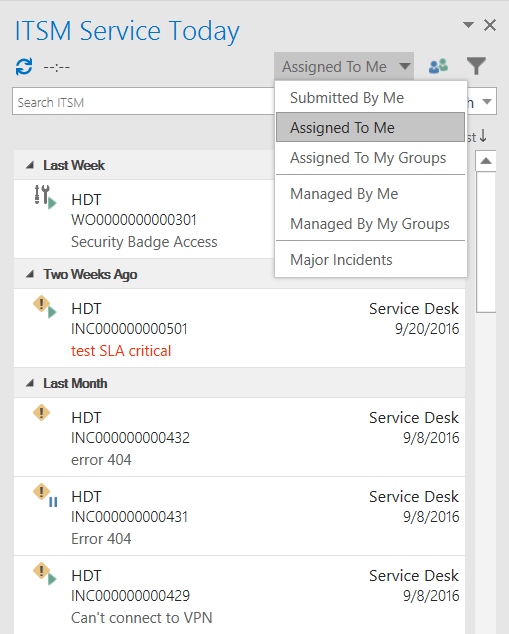
- Filtering options to configure how your workload is displayed.


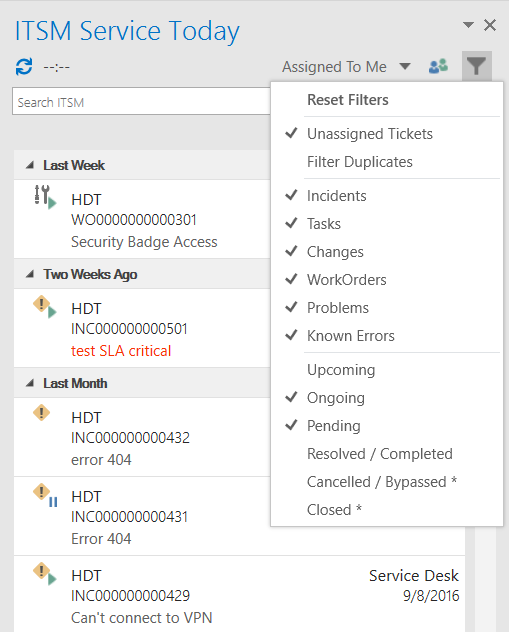
The filters of the Service Today panel let you choose which types of records appear in the workload:
ITSM record
Selecting a ticket in the Service Today panel displays its information and gives access to further options and features.
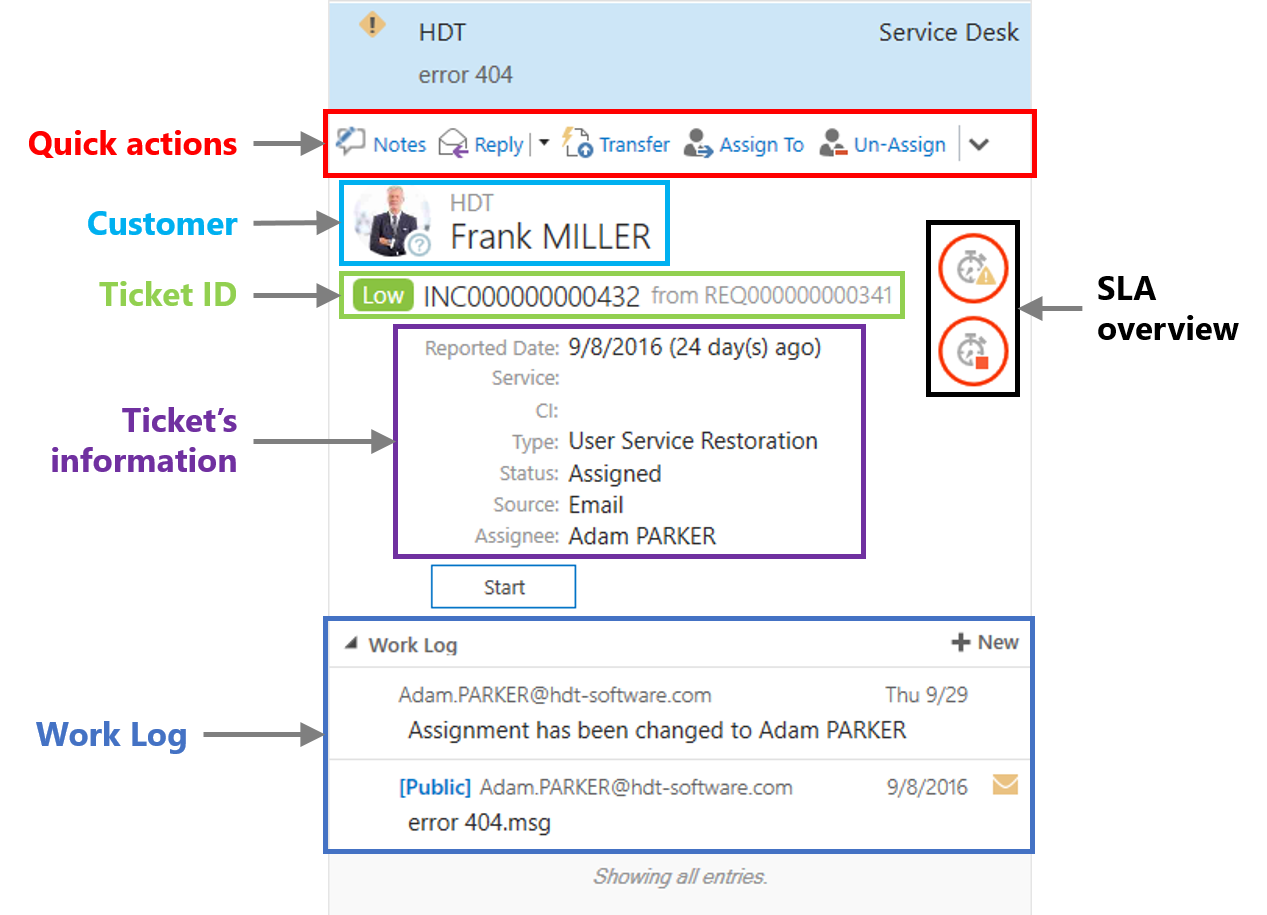
- Right-click the customer name to open a contextual menu showing the customer’s case history.
- Right-click the ticket ID to open the ticket in Smart IT or the Remedy ITSM console.
Contextual menu
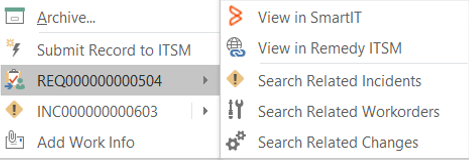
Right-clicking an email in Outlook shows new options in the contextual menu. From there you can:
- Create a ticket from the email.
- Add work information to the work log.
- If the email is already linked to a ticket, open the ticket directly in the Service Today panel, Smart IT or the Remedy ITSM console.